
If you’re dual-booting Windows and Linux, you’ll probably want to access files on your Linux system from Windows at some point. Linux has built-in support for Windows NTFS partitions, but Windows can’t read Linux partitions without third-party software.

This list is focused on applications that support the Ext4 file system, which most new Linux distributions use by default. These applications all support Ext2 and Ext3, too – and one of them even supports ReiserFS.
Ext2Fsd
Ext2Fsd is a Windows file system driver for the Ext2, Ext3, and Ext4 file systems. It allows Windows to read Linux file systems natively, providing access to the file system via a drive letter that any program can acess.
You can have Ext2Fsd launch at every boot or only open it when you need it. While you can theoretically enable support for writing to Linux partitions, I haven’t tested this. I’d be worried about this option, myself – a lot can go wrong. Read-only support is fine, though, and doesn’t have a risk of messing anything up.

The Ext2 Volume Manager application allows you to define mount points for your Linux partitions and change Ext2Fsd’s settings.

If you didn’t set Ext2Fsd to autostart at boot, you’ll have to go into Tools –> Service Management and start the Ext2Fsd service before you can access your Linux files. By default, the driver automatically mounts and assigns drive letters to your Linux partitions, so you don’t have to do anything extra.

You’ll find your Linux partitions mounted at their own drive letters in Windows Explorer. You can access the files on them from any application, without the hassle of copying files to your Windows partition before accessing them.

This partition’s file system as actually EXT4, but Ext2Fsd can read it fine, anyway. If you’re looking for your personal files, you’ll find them in your /home/NAME directory.

DiskInternal's Linux Reader
Linux Reader is a freeware application from DiskInternals, developers of data recovery software. In addition to the Ext file systems, Linux Reader also supports ReiserFS and Apple’s HFS and HFS+ file systems. It’s read-only, so it can’t damage your Linux file system.
Linux Reader doesn’t provide access via a drive letter – it’s a separate application you launch to browse your Linux partitions.

Linux Reader shows previews of your files, making it easy to find the right one.

If you want to work with a file in Windows, you’ll have to save the file from your Linux partition to your Windows file system with the Save option. You can also save entire directories of files.

Ext2explore
It’s an open-source application that works similarly to DiskInternals Linux Reader — but only for Ext4, Ext3, and Ext2 partitions. It also lacks file previews, but it has one advantage: it doesn’t have to be installed; you can just download the .exe and run it.
The Ext2explore.exe program must be run as administrator or you’ll get an error – you can do this from the right-click menu.

To save some time in the future, go into the file’s properties window and enable the “Run this program as an administrator” option on the Compatibility tab.

As with Linux Reader, you’ll have to save a file or directory to your Windows system before you can open it in other programs.


This list is focused on applications that support the Ext4 file system, which most new Linux distributions use by default. These applications all support Ext2 and Ext3, too – and one of them even supports ReiserFS.
Ext2Fsd
Ext2Fsd is a Windows file system driver for the Ext2, Ext3, and Ext4 file systems. It allows Windows to read Linux file systems natively, providing access to the file system via a drive letter that any program can acess.
You can have Ext2Fsd launch at every boot or only open it when you need it. While you can theoretically enable support for writing to Linux partitions, I haven’t tested this. I’d be worried about this option, myself – a lot can go wrong. Read-only support is fine, though, and doesn’t have a risk of messing anything up.

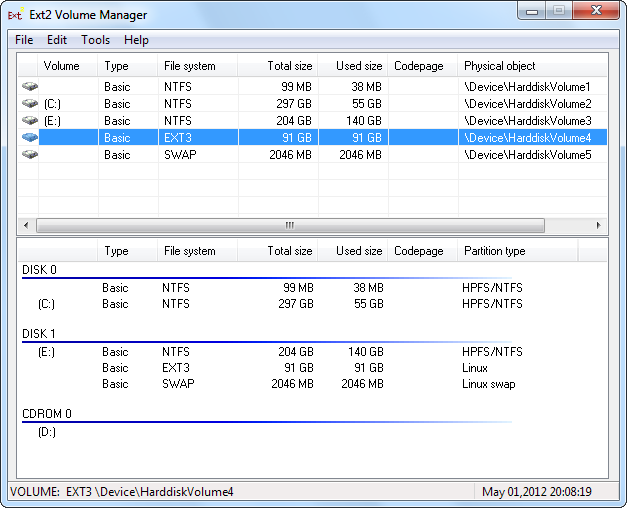
If you didn’t set Ext2Fsd to autostart at boot, you’ll have to go into Tools –> Service Management and start the Ext2Fsd service before you can access your Linux files. By default, the driver automatically mounts and assigns drive letters to your Linux partitions, so you don’t have to do anything extra.


This partition’s file system as actually EXT4, but Ext2Fsd can read it fine, anyway. If you’re looking for your personal files, you’ll find them in your /home/NAME directory.

DiskInternal's Linux Reader
Linux Reader is a freeware application from DiskInternals, developers of data recovery software. In addition to the Ext file systems, Linux Reader also supports ReiserFS and Apple’s HFS and HFS+ file systems. It’s read-only, so it can’t damage your Linux file system.
Linux Reader doesn’t provide access via a drive letter – it’s a separate application you launch to browse your Linux partitions.

Linux Reader shows previews of your files, making it easy to find the right one.

If you want to work with a file in Windows, you’ll have to save the file from your Linux partition to your Windows file system with the Save option. You can also save entire directories of files.

Ext2explore
It’s an open-source application that works similarly to DiskInternals Linux Reader — but only for Ext4, Ext3, and Ext2 partitions. It also lacks file previews, but it has one advantage: it doesn’t have to be installed; you can just download the .exe and run it.
The Ext2explore.exe program must be run as administrator or you’ll get an error – you can do this from the right-click menu.

To save some time in the future, go into the file’s properties window and enable the “Run this program as an administrator” option on the Compatibility tab.

As with Linux Reader, you’ll have to save a file or directory to your Windows system before you can open it in other programs.


Follow Us
Were this world an endless plain, and by sailing eastward we could for ever reach new distances