Showing posts with label Slider. Show all posts

Add your own Facebook page to your workplace

You are owner of a business and own official page of your business on Facebook but unable to attach your own page as your workplace in event post.
Here are the steps you can follow to do it manually.


Step : 1

You must be an owner/admin of your official fan page. If you are not the owner/admin of the page, no worry, you only need to know the page id of the page you want to add to your workplace.

For an admin : to know your page id, follow these steps...
  • Go to your page
  • About
  • Scroll down the page
You will see the Facebook ID. Note it down.

For other users who are not the admin of the page, follow these steps...

  • visit : http://findmyfbid.com/
  • copy and paste the Facebook page URL in the input box
  • You will get the Facebook page ID, note it down

Step : 2

Download "web developer" extension from Chrome web store HERE

Step : 3

Go to your Facebook profile page and add an Life Event >> work & Education >> New Job


In the pop up, enter your page name and select any page from the suggested list.
Now click on the gear icon in the extension on the top right corner of google chrome browser and click on Display Form Detail.


Next you will see some html codes around your form.

Next to Employer, in the input box replace ID with your own page's ID which was copied earlier.

No need to change the page name, just ID is to be replaced.

Step : 4

Now disable the Form Detail from the extension following the same step as earlier.

Step : 5

Fill other details in the form and save it.

You will see your page listed as your workplace in your profile now.


Do Comment, if it works for you.

Ubuntu Touch coming to India :Ubuntu Based BQ Aquaris Phones To Reach India


The new open source-based mobile operating system which was introduced just six months ago, has reached various nations after it joined hands with smartphone manufacturers like BQ and Meizu

Canonical is gradually reaching out to the world. After entering China, Europe, the United States with its Ubuntu phones, it is now venturing into the Indian markets. The new open source based mobile operating system which was introduced just six months ago, has reached various nations after it joined hands with smartphone manufacturers like Bq and Meizu. Now the BQ Aquaris E4.5 and BQ Aquaris E5 phones are all set to make their debut in India.


While the operating system is still under development, it is successful in various regions. Ubuntu Touch would soon become a global phenomenon. While it is focusing on one region at a time, we hear that Ubuntu based phones would reach India by the end of this month.

"BQ will be launching the same two European devices. BQ Aquaris E4.5 and BQ Aquaris E5, with a black variant in India on the Snapdeal website. Two weeks after the launch, there will be an Ubuntu Store on Snapdeal where other Ubuntu products will be available. We haven't got a precise date for the launch, but it will happen probably in the next two weeks. For the Indian launch, Ubuntu Phone will not be released on devices with a specific Indian image but there will be specific apps content available from an Indian specific app store," Carla Sella posted on the blog.

India is definitely one of the biggest smartphone markets in the world. Hence, it will be interesting to see the performance of Ubuntu handsets in our country. While, Android operating system (OS) has already made its market in Indian, tech buffs are eagerly waiting for an open source mobile operating system. Meanwhile, BQ Aquaris E4.5 and BQ Aquaris E5 are priced at ₹ 12, 250 ₹ 14,500 in Europe respectively. 

µTorrent on Ubuntu [Linux]

µTorrent, or uTorrent is a freeware, ad-supported, proprietary BitTorrent client owned and developed by BitTorrent, Inc. With over 100 million users. It is the most widely used BitTorrent client.


µTorrent is used to download .torrent and magnet files (movies, games, songs, etc).
µTorrent is all platforms and is mostly used on windows pc. Setting up µTorrent on Ubuntu is a little bit tricky.
But don't worry, I am here to help you go through it and use µTorrent on your Ubuntu PC.

Steps to be Followed:

1 : Download latest µTorrent Server from here

Note: (You need to download uTorrent Server for 13.04, also works for Ubuntu 14.04)

2 :  Extract uTorrent Files

  • Launch terminal and change directory to Downloads folder
cd Downloads/
  • Extract uTorrent files to the /opt directory
  • sudo tar xvzf utserver.tar.gz -C /opt/
    
3 : Set Permission
  • Set permission on uTorrent-server folder
  • sudo chmod -R 777 /opt/utorrent-server-alpha-v3_3/
4 : Set Symbolic Link
  • Run the command to link uTorrent server to the /user/bin directory.
  • sudo ln -s /opt/utorrent-server-alpha-v3_3/utserver /usr/bin/utserver
    
5 : Start µTorrent


utserver -settingspath /opt/utorrent-server-alpha-v3_3/
Note: If you get an error about libssl.so package missing, run the command below to install it, then try starting it again.

sudo apt-get install libssl0.9.8:i386

6 : Log on to µTorrent

  • Open Firefox and browse to the URL

  • localhost:8080/gui
The username is admin and leave the password field empty


3 Ways to mount Linux Partition on Windows System

If you’re dual-booting Windows and Linux, you’ll probably want to access files on your Linux system from Windows at some point. Linux has built-in support for Windows NTFS partitions, but Windows can’t read Linux partitions without third-party software.


This list is focused on applications that support the Ext4 file system, which most new Linux distributions use by default. These applications all support Ext2 and Ext3, too – and one of them even supports ReiserFS.

Ext2Fsd

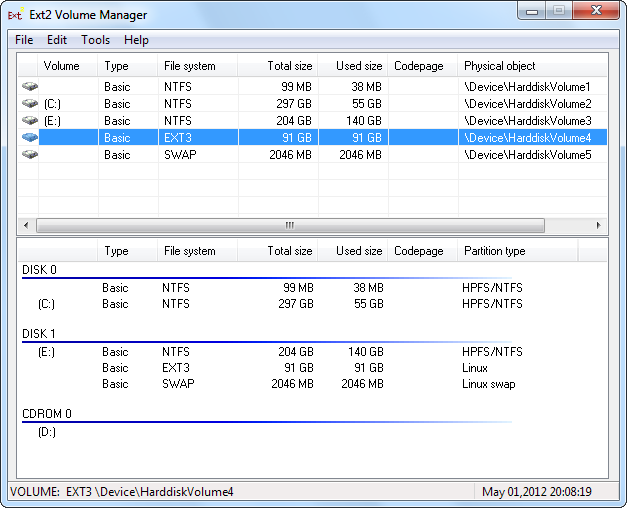
Ext2Fsd is a Windows file system driver for the Ext2, Ext3, and Ext4 file systems. It allows Windows to read Linux file systems natively, providing access to the file system via a drive letter that any program can acess.

You can have Ext2Fsd launch at every boot or only open it when you need it. While you can theoretically enable support for writing to Linux partitions, I haven’t tested this. I’d be worried about this option, myself – a lot can go wrong. Read-only support is fine, though, and doesn’t have a risk of messing anything up.

The Ext2 Volume Manager application allows you to define mount points for your Linux partitions and change Ext2Fsd’s settings.

If you didn’t set Ext2Fsd to autostart at boot, you’ll have to go into Tools –> Service Management and start the Ext2Fsd service before you can access your Linux files. By default, the driver automatically mounts and assigns drive letters to your Linux partitions, so you don’t have to do anything extra.

You’ll find your Linux partitions mounted at their own drive letters in Windows Explorer. You can access the files on them from any application, without the hassle of copying files to your Windows partition before accessing them.

This partition’s file system as actually EXT4, but Ext2Fsd can read it fine, anyway. If you’re looking for your personal files, you’ll find them in your /home/NAME directory.


DiskInternal's Linux Reader

Linux Reader is a freeware application from DiskInternals, developers of data recovery software. In addition to the Ext file systems, Linux Reader also supports ReiserFS and Apple’s HFS and HFS+ file systems. It’s read-only, so it can’t damage your Linux file system.


Linux Reader doesn’t provide access via a drive letter – it’s a separate application you launch to browse your Linux partitions.

Linux Reader shows previews of your files, making it easy to find the right one.

If you want to work with a file in Windows, you’ll have to save the file from your Linux partition to your Windows file system with the Save option. You can also save entire directories of files.


Ext2explore

It’s an open-source application that works similarly to DiskInternals Linux Reader — but only for Ext4, Ext3, and Ext2 partitions. It also lacks file previews, but it has one advantage: it doesn’t have to be installed; you can just download the .exe and run it.


The Ext2explore.exe program must be run as administrator or you’ll get an error – you can do this from the right-click menu.

To save some time in the future, go into the file’s properties window and enable the “Run this program as an administrator” option on the Compatibility tab.

As with Linux Reader, you’ll have to save a file or directory to your Windows system before you can open it in other programs.

10 Awesome Things You Can Do On Your Linux!

Well, it's no surprsie that the best things in life are always 'free'. Add to that Linux and open source, and you know what we are talkin about! Of course, Windows and Mac occupy a distinct edge in market, but that doesn't mean Linux is far behind. And just because you're a Windows/Mac buff, it doesn't mean learning a thing or two about Linux operating system will be downright waste for you. What if we tell you Linux can do newer things that were not even imagined with Windows around?


Well, here are 10 such tricks only Linux can offer: 

1. Get malware free environment

-Rest assured your Linux-powered device will not be affected by viruses.

-Not every file found in the wild is executed in Linux.

-Does not allow auto-runs every time you plug a new disk.

2. Make upgrade without rebooting 

-Every time you install software in Windows, it will ask you to reboot. However, with Linux you're saved the trouble!

3. You can also maintain the timestamp 

-You can know when a file was last accessed with the help of 'touch' command.

-Prevents anyone from stealthily touching your files as it maintains a timestamp.

-Further, there is no limit in length for a filename.

4. You can search and install software easily 

-Synaptic Package manager gives you access to most significant software packages from one source. Simply select your preference using drop down box to get the software that suits you best.

5. You can keep your system on for hundreds of hours and still have good processing speed 

-Linux can clock several hours with multiple users using it and still runs at usual speed unlike Windows.

6. Move bootable drives between machines without re-installing them 

-Each time you add RAM, Windows will always ask you to re-install. This is not the case with Linux.

7. Get software issues solved through forums 

-If something goes wrong in Windows, you have to run to an expert to fix it. With Linux, you have discussion forums to help you achieve the same.

8. Get all your hardware supported 

-Test all our hardware using live CD before installing the OS.

9. Choose your customised OS from hundreds of distributors 

-Linux is just the engine and different operating systems are built around it. You can hand pick the one that suits your need.

10. Install Linux for “free” and keep your Windows

-You can install Linux in a separate drive and keep your Windows as well.

-Also you can run Windows applications on Linux platform using WINE.

Use HTML Coding to Hack a website

 Yes folks, you can use HTML to hack a website. The eight steps described below will take you from zero to hero in no time whatsoever. So how do we do it? Read on to find out..


1. First put in the username and password in the login form. You can put in any username and password. This will generate an error, telling you that the username and password entered are wrong. This is where the work starts.

2. Now right click on the error page and click on view source.

3. Before the next step, copy the URL of the website that you are in. This shows you the HTML coding and JavaScript. Look for something like <_form action=”…Login…”>.

4. The JavaScript that you see here is used to validate the information provided in the server. Now you have to delete the JavaScript. Do this carefully because this is what determines whether you’re going to be able to hack the website or not.

5. Now look for “<_input name="password" type="password">" (without the quote marks). Now replace this with "<_type=password>" with "<_type=text>". Check if the maximum length of the password is less than 11 and increase it to 11.

6. Now go to file, save as and save it somewhere on your hard drive with the .html extension.

7. Next you have to reopen the webpage by double clicking on the file that you saved. You will see a few changes in the current page as compared to the original one.

8. Now choose a username and password and you will have successfully logged into the account.


10 Clever Uses For Google Search You May Not Have Known About

Searching on Google is not just about putting in the right keywords, and you definitely don’t need to understand what Hummingbird is all about. Google’s search application is a powerful tool that can do a lot of things. Moreover, you don’t need to be a geek or a computer genius to use these features. They are often as simple as copying and pasting something onto the search bar. Here are 10 tricks that are super easy, but you may have missed them.


1. Search on specific websites: Did you know you could do this? You can use Google Search to search through specific websites. So, for example, if you don’t like the search tool on our website, you can just open Google and type site:efytimes.com followed by whatever you want to search for. Google will search our website for you.

2. Reverse Image Search: You all know that you can search Google using Images, no not the Image search, you can actually insert an image on the Google Search bar. What many miss is the amount of information that you can find using this. Instead of checking the Google image results, check the normal search results that come. You can find the source of a picture through this. It can also be used for finding things like recipes of certain preparations etc.

3. Autocomplete wildcards: Auto complete is a very handy feature on Google Search, but there’s more to it than meets the eye. Like other advanced search engines, you can put blank in the middle of your search terms, which signifies ‘anything’. Google will show wildcard suggestions for the term that can be put there. So, if you’re searching for ‘how to learn English’, you can remove the word ‘learn’ from the string and Google will give you suggestions about what all can be put there.

4. Search for free downloads: Remember these search tools: inurl, intitle and filetype. If you need to search for a free Android APK, then search using inurl:htm/inurl:html intitle:"index of" apk. This will show you the indexes of all stored apk files.

5. Find alternatives for websites, products etc.: We’ve all searched on Google for comparisons between various websites ad products. But what do you do when you don’t know who the competitor is? It’s simple, if you want to search for a competitor to the iPhone 5S, just write ‘iPhone 5S vs’, and Google will show you suggestions for popularly searched competitors.

6. Google cache: The cached link to different websites on Google is highly useful. It can be used to access a website when it is down or getting around a SOPA blackout. But, you don’t always have to click on the cached link, you can simply write cache: along with the URL for the site and you will have what you need.

7. Google proxy: You can use Google search to bypass security features, paywalls and downloading files by funnelling through websites using Google Translate or Mobilizer. Just like the cached option, you can also access this directly, as long as you have the URL available.

All you have to do is add the URL to the end of the Google URL. For example, http://translate.google.com/translate?sl=ja&tl=en&u=http://example.com/.

8. Google Images to look for people: When a person’s name is the same as that of an object, it often returns conflicting results. To get around this, you can just add the &imgtype=facethe to the end of the search URL. The search will be redone and only those with faces will be returned.

9. Time-based search results: Google Search already provides a filter for getting time-based results, but if you want to be more specific, there is a way to do that too. All you have to do is add &tbs=qdr: to the end of your URL. You have to specify the time too. Here, h5 signifies five hours, while n5 signifies five minutes. For five seconds, write s5. So, if you want to search in the last ten minutes, you will write add&tbs=qdr:n10 to the URL.

10. Advanced operators: The AND or OR operators can be used on Google to search for multiple terms. But you already know that. What you may not know is that you can use the AROUND operator too. This operator provides results that are about halfway to or from the search term(s). So, you can write AROUND(2) for using two search terms, which ensures that the two words that are used are close to each other. The number in the parentheses can differ.

Top 8 Funny Linux Commands !

The most powerful feature of Linux lies in its Command Line. But Terminal isn't meant to be this serious always, you can also have fun using some funny and amusing command lines. If you aren't aware of these yet, here are some amusing commands that will bring up the funny side of Linux:


1.  moo

     To install, run : $ apt-get moo

     This will display:
   

2.   sl
      
      The command is used to display files in a directory, but if you make a typo error and type sl instead you will be amused by an animated train running across your screen.


   To install sl, run the command below: $ sudo apt-get install sl

3.  figlet

     Figlet is used to display large characters created out of ordinary screen characters.
     To install Figlet, run the command :
        $ sudo apt-get install figlet

    After installation you can run : $ figlet character, hence running:

      figlet THE Coders
      gives
      

4.   xcowsay
    
       xcowsay displays a cute cow and a speech bubble.

       Install xcowsay : $ sudo apt-get install xcowsay

       Running xcowsay I Love THE Coder displays:


5.   oneko

      oneko brings a cute cat on your desktop to chase your mouse pointer everywhere it goes. The command also have other versions of bringing dog and other animals.

     Install oneko : $ sudo apt-get install oneko

     Running oneko displays this cute cat:


6. xeyes

     Xeyes brings eyes on your desktop that will spy on your mouse wherever it goes.

    Run : $ xeyes

     It brings: 
     

7.  rev

      This command is for reversing any input. So if you put in "THE Coders", the ouput will be
 "sredoC EHT"
    

8.  fortune
  
     fortune brings a random sentence, just like the fortune cookies do. The command isn't always installed by default so you need to install it. In Ubuntu

    $ sudo apt-get install fortune

   Run : $ fotune -s


    Now, also you can combine this with the cowsay or xcowsay command to make it funnier by running:

    $ fortune -s|xcowsay

     Which will bring :